
You’ve been collecting research for weeks — PDFs scattered across folders, articles bookmarked but never revisited, notes buried in different apps. The information exists, but connecting it feels impossible.
NotebookLM and Gemini integration changes that. This isn’t just another AI tool promising to revolutionize your workflow. It’s Google’s research-focused platform that transforms scattered sources into a unified knowledge base — then helps you write from it.
Let’s look at how this integration actually works and why most authors aren’t using it effectively.
Why Most Writers Struggle with Research Organization
Research is where good books begin. But it’s also where most writers get stuck.
You gather sources from everywhere — academic papers, web articles, interview transcripts, your own notes. Each lives in its own silo. When you sit down to write, you’re constantly switching between tabs, documents, and apps trying to find that one quote or statistic.
The problem isn’t the quality of your research. It’s the fragmentation.
Traditional note-taking apps treat each piece of information as separate. They don’t understand connections between sources or help you synthesize insights across documents. You end up with a digital filing cabinet instead of a research assistant.
NotebookLM helps identify connections between your sources and synthesize information across documents.
Understanding NotebookLM’s Role in Your Writing Workflow
NotebookLM isn’t trying to replace your writing tools. It sits between research and writing — the messy middle where insights get lost.
Think of it as a research hub that ingests your sources, understands their content, and helps you explore connections. Upload PDFs, paste web articles, add your own notes. NotebookLM reads everything and builds a comprehensive understanding of your material.
Then it becomes your research partner. Ask questions that span multiple documents. Get summaries that pull from all your sources. Generate outlines that incorporate insights from your entire collection.
Unlike general-purpose AI assistants, NotebookLM primarily grounds its responses in the sources you provide, helping reduce hallucinations and improve accuracy. Recent updates also enable users to discover and add relevant web sources directly within NotebookLM. Rather than drawing on broad training data, NotebookLM focuses on synthesizing insights from the materials included in your notebook.
This makes it particularly valuable for nonfiction authors who need accuracy and citation-worthy insights.
How Gemini Powers NotebookLM Behind the Scenes
Google built NotebookLM on top of Google Gemini, their large language model. But you’re not using Gemini directly — you’re using a specialized version trained for research tasks.
This integration handles three core functions that make NotebookLM different from general AI assistants:
Source comprehension: Gemini reads and understands the full context of your documents — not just keywords or summaries. It grasps arguments, identifies key themes, and recognizes relationships between concepts.
Cross-document synthesis: When you ask a question, Gemini searches across all your sources simultaneously. It can connect a statistic from one paper with a case study from another, creating insights that span your entire research collection.
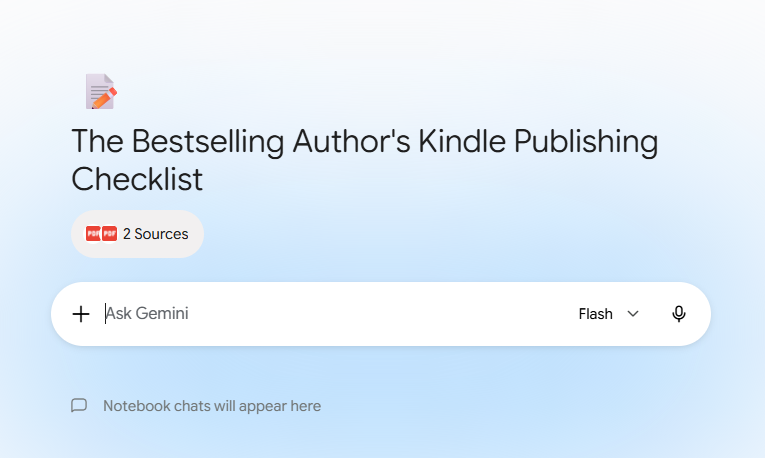
NotebookLM integration in Gemini
Grounded responses: Unlike ChatGPT or Claude, NotebookLM’s Gemini integration is constrained to your uploaded sources. It can’t access external information or generate content beyond what you’ve provided. This limitation is actually a feature for serious research work.
The result feels like having a research assistant who has read everything in your library and can instantly recall any detail or connection.
How Gemini Notebooks and NotebookLM Work Together
Google has introduced Notebooks in Gemini, bringing some of NotebookLM’s source-focused features directly into the Gemini app. Instead of working as two separate tools, Gemini and NotebookLM now connect through shared notebooks.
Think of Gemini Notebooks as dedicated project spaces. You can store conversations, upload files, add custom instructions, and keep everything related to a specific project in one place. Whether you’re writing a book, researching a topic, or planning a presentation, the notebook gives Gemini the background information it needs to provide more useful and relevant responses.
What makes this especially helpful is that these notebooks sync with NotebookLM. Notebooks created in Gemini can be opened in NotebookLM, giving you access to NotebookLM’s research-focused features without starting from scratch. The process works both ways: sources added in NotebookLM are also available inside Gemini.
For authors, this creates a practical workflow.
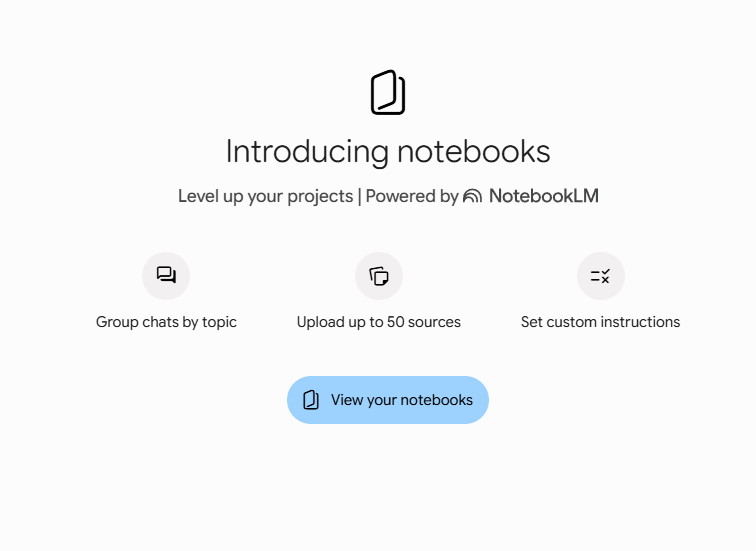
NotebookLM integration in Gemini
Use Gemini Notebooks when you want to brainstorm ideas, draft content, ask questions, and maintain ongoing conversations about your project. It becomes a central workspace where your ideas, notes, and writing stay connected.
Turn to NotebookLM when you need to work more closely with your source material. It can help you identify themes across multiple documents, create study guides, generate audio overviews, and produce summaries based on your research.
For example, imagine you’re writing a nonfiction book about productivity. You could upload research papers, interview transcripts, and personal notes into a Gemini Notebook. Gemini can help you develop chapter ideas, strengthen your arguments, or draft sections of your manuscript. When you need a closer look at your research materials, you can open the same notebook in NotebookLM to spot patterns, compare information from different sources, and create source-based summaries.
The result is a smoother writing process.
Setting Up Your NotebookLM Research Hub for Maximum Efficiency
The power of NotebookLM and Gemini integration depends on how you organize your sources. Random uploads won’t give you random results — they’ll give you unfocused ones.
Start with a clear project scope. Create separate notebooks for different books or research projects. Don’t mix unrelated topics in the same notebook.
Source selection matters: NotebookLM works best with substantial documents — research papers, long-form articles, book chapters, interview transcripts. Short social media posts or brief news items won’t provide enough context for meaningful synthesis.
Upload strategically: Add your most authoritative sources first. These become the foundation for all subsequent analysis. Then layer in supporting materials, alternative perspectives, and your own notes.
Use source titles and descriptions: NotebookLM performs better when it understands what each source represents. Instead of “Document1.pdf,” use descriptive titles like “Harvard Business Review – Remote Work Productivity Study 2023.”
Test early and often: After uploading 3-4 key sources, start asking questions. This helps you understand what connections the system is making and whether you need additional materials.
Most authors upload everything at once and expect instant brilliance. The integration works better when you build your knowledge base thoughtfully, testing insights along the way.
Advanced Integration Techniques for Complex Writing Projects
Once you understand the basics, NotebookLM and Gemini integration can handle sophisticated research workflows that would overwhelm traditional methods.
Perspective analysis: Upload sources representing different viewpoints on your topic. Ask NotebookLM to identify where experts agree and disagree. This reveals gaps in the current discourse — potential angles for your book.
Timeline construction: For historical or biographical projects, upload materials from different time periods. NotebookLM can help you build chronologies that synthesize information across multiple sources.
Argument mapping: Upload papers that cite each other. Ask NotebookLM to trace how ideas evolved across publications. This helps you position your work within existing academic or industry conversations.
Gap identification: After uploading comprehensive research, ask what questions remain unanswered. NotebookLM can identify areas where your sources are silent — research gaps that your book might fill.
Troubleshooting Common NotebookLM and Gemini Issues
Every tool has limitations. NotebookLM works brilliantly within its constraints, but understanding those boundaries prevents frustration.
Source quality determines output quality: If your sources contain errors or biased information, NotebookLM will incorporate those issues into its analysis. It doesn’t fact-check or validate information — it works with what you provide.
Upload limits exist: NotebookLM has file size and quantity restrictions. Large projects may require multiple notebooks or strategic source selection. Focus on the most essential materials first.
Processing time varies: Complex documents with heavy formatting, images, or unusual layouts take longer to process. PDFs work better than scanned documents. Clean text uploads faster than mixed media.
Context understanding has limits: While Gemini excels at comprehension, very specialized technical content or highly domain-specific jargon may challenge the system. Test understanding with specific questions about technical details.
Citation precision matters: NotebookLM identifies source material but doesn’t generate formal citations. You’ll need to create proper academic or professional citations manually using the source information it provides.
Most problems stem from expecting the integration to work like a general AI assistant rather than a specialized research tool.
Alternative AI Research Tools vs NotebookLM Integration
NotebookLM isn’t the only AI research tool available. Understanding alternatives helps you choose the right approach for your specific needs.
Obsidian with AI plugins offers more control over knowledge connections but requires manual setup and maintenance. Good for writers who want to build permanent knowledge systems across multiple projects.
Roam Research excels at connecting ideas but lacks built-in AI analysis. Better for exploratory thinking than systematic research synthesis.
Mem focuses on personal knowledge management with AI assistance. Useful for writers who research continuously across many topics.
| Tool | Best For | Key Limitation |
|---|---|---|
| NotebookLM | Source-grounded research synthesis | Limited to uploaded documents |
| Obsidian + AI | Permanent knowledge systems | Requires technical setup |
| Roam Research | Exploratory connections | No built-in AI analysis |
| Mem | Cross-project knowledge | Less focused research features |
For authors working on single book projects with substantial source material, NotebookLM’s integration with Gemini provides the most direct path from research to writing insights.
The choice depends on whether you need a research assistant for one project or a knowledge system for ongoing work.
Getting Started with NotebookLM Today
The best way to understand NotebookLM and Gemini integration is to use it on a real project.
Start small. Choose one writing project and gather 5-10 key sources. Create a new notebook and upload materials one at a time, testing the system’s understanding after each addition.
Ask specific questions rather than general ones. Instead of “What does this research say?” try “How do these three studies define success differently?” or “What evidence supports the main argument in Source A?”
Use the integration to generate outlines, identify themes, and find connections you might have missed. But remember — it’s a research tool, not a writing replacement. The insights it provides still need your analysis, interpretation, and voice.
Most authors who try NotebookLM focus on its features rather than their research needs. The integration works best when you approach it as a solution to specific research challenges, not as a general productivity enhancement.
Your sources hold the answers to your book. NotebookLM and Gemini integration just makes those answers easier to find and connect.